Revit to Unreal Workflow

Updated: Feb 3, 2022
Using the Datasmith Plugin
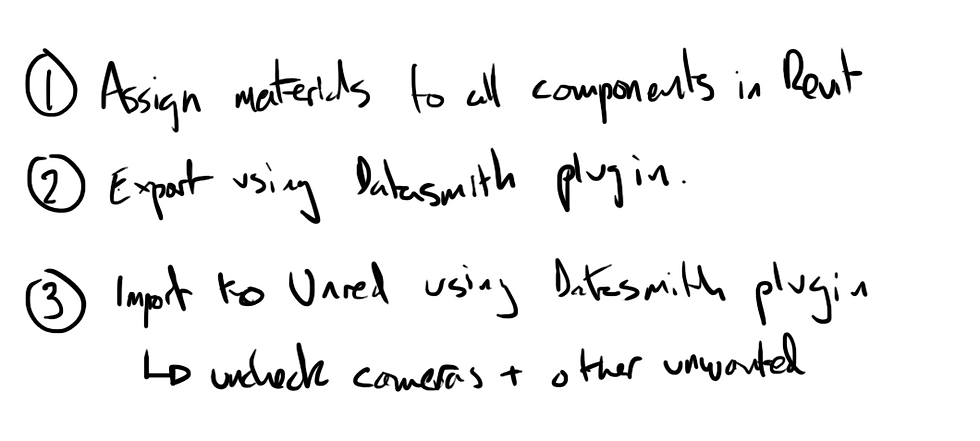
Essentially the datasmith plugin allows the direct import of a Revit model into Unreal Engine.

All materials and geometry are retained, with each component being imported as a separate actor in Unreal. [fig.1]
This allows the model to be retextured as needed, or actors moved.
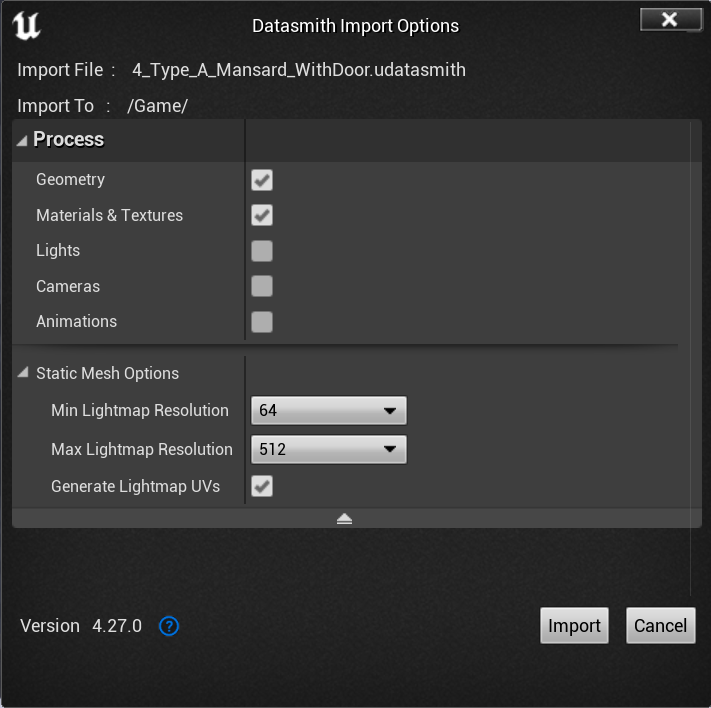
There are a few import options that allow a bit of control of what gets imported [fig.2].
I've generally found - for this project at least - that Lights, Cameras, and Animations are not worth importing. These options would be better suited if a fly-through camera or any internal cameras were already set-up inside Revit. The camera controls/settings are more rudimentary however, so these would likely just be replaced/changed anyway.
Geometry and Materials seem to for the most part be crucial. removing all the textures allows less control when applying new textures in Unreal.
The best way to control what you import into Unreal is controlling what is viewed within Revit when exporting.
Whatever is visible within your selected 3D revit view is exported. This allows you to turn off specific model elements (windows, doors, topography etc), or even use section boxes to cut larger models down for a cutaway.
Exporting an .fbx

Through much trial and error, this seems to be the most effective workflow if you want to use the .fbx model from Revit in other software.
The biggest obstacle seems to be that Revit approaches materials/texture mapping in a different way.
Importing the Revit .fbx directly into Mixer to try and texture the model is inadvisable.
The entire model is imported as a single mesh, so any surface that need to textured differently would need to be imported separately. However the mapping is unusable in the projection box setting. Switching to a tiled max fixes the issue somewhat, however painting doesn't function and some objects are rotated incorrectly.
To fix these issues, all texture maps and materials first need to be removed and the fbx resaved.
Fixing UVW maps in 3DS Max
Attach all together
Remove UVW and materials
Select all - Add a 'UVW Map' modifier
Create new Multi-Sub material
Assign material to Editable Mesh
Assign a unique material ID to each different material in project.
Resave as .fbx with default settings.
Note: Avoid spaces and unusual characters in the Material names as this may impact importing into Unreal down the pipeline
PROS/CONS
Datasmith Plugin | Through 3dsMax and Mixer |
Quick and simple | Several additional steps |
Can update models in Unreal for any changes to model | Destructive process does not allow autoupdating |
Standard Unreal texturing options | Much finer texturing control |
| |
| |
| |
| |


Comments